How to Get and Activate M3U Playlists on TiviMate
TiviMate stands out as one of the most popular IPTV players designed specifically for Android TV and Amazon Firestick devices. While the app delivers an exceptional viewing experience with its intuitive interface and advanced features, it requires an M3U playlist URL from your IPTV service provider to function. This comprehensive tutorial walks you through obtaining M3U playlists and configuring them in TiviMate for optimal streaming performance.
Understanding M3U Playlists for IPTV Streaming
An M3U playlist serves as a structured file format containing URLs that direct IPTV applications to streaming content sources. This universally compatible format enables seamless channel organization across virtually all IPTV players and streaming devices, making it the industry standard for IPTV content delivery.
Standard M3U Playlist URL Structure
http://provider-server.com:8080/get.php?username=YOUR_USERNAME&password=YOUR_PASSWORD&type=m3u_plusNote: Replace YOUR_USERNAME and YOUR_PASSWORD with your actual IPTV credentials provided by your service.
Content Available Through M3U Playlists
- Live Television Channels - Access sports networks, news broadcasts, entertainment channels, and international programming
- Video on Demand (VOD) - Browse extensive movie libraries with on-demand playback
- Series Collections - Stream complete TV show seasons with all episodes
- Electronic Program Guide (EPG) - View detailed TV schedules and program information
Where to Obtain Reliable M3U Playlists for TiviMate
Securing a dependable M3U playlist requires choosing reputable IPTV service providers who offer stable streaming infrastructure and comprehensive account credentials. The most reliable approach involves subscribing to established IPTV services that provide instant playlist delivery and ongoing technical support.
Instant M3U Playlist Delivery
Reputable IPTV providers typically offer trial subscriptions that deliver your M3U playlist credentials automatically within minutes of registration. This allows you to test service quality and channel availability before committing to a paid subscription.
Essential Credentials from IPTV Providers
- Xtream Codes API - Server address, unique username, and secure password
- M3U Playlist URL - Direct link to your channel lineup
- EPG Source URL - Program guide data for accurate TV schedules
Step-by-Step: Adding M3U Playlists to TiviMate
This detailed walkthrough demonstrates the complete process of integrating your M3U playlist into TiviMate, from initial configuration through channel loading and EPG synchronization. Follow these instructions carefully to ensure proper setup and optimal streaming performance.
Detailed Configuration Instructions
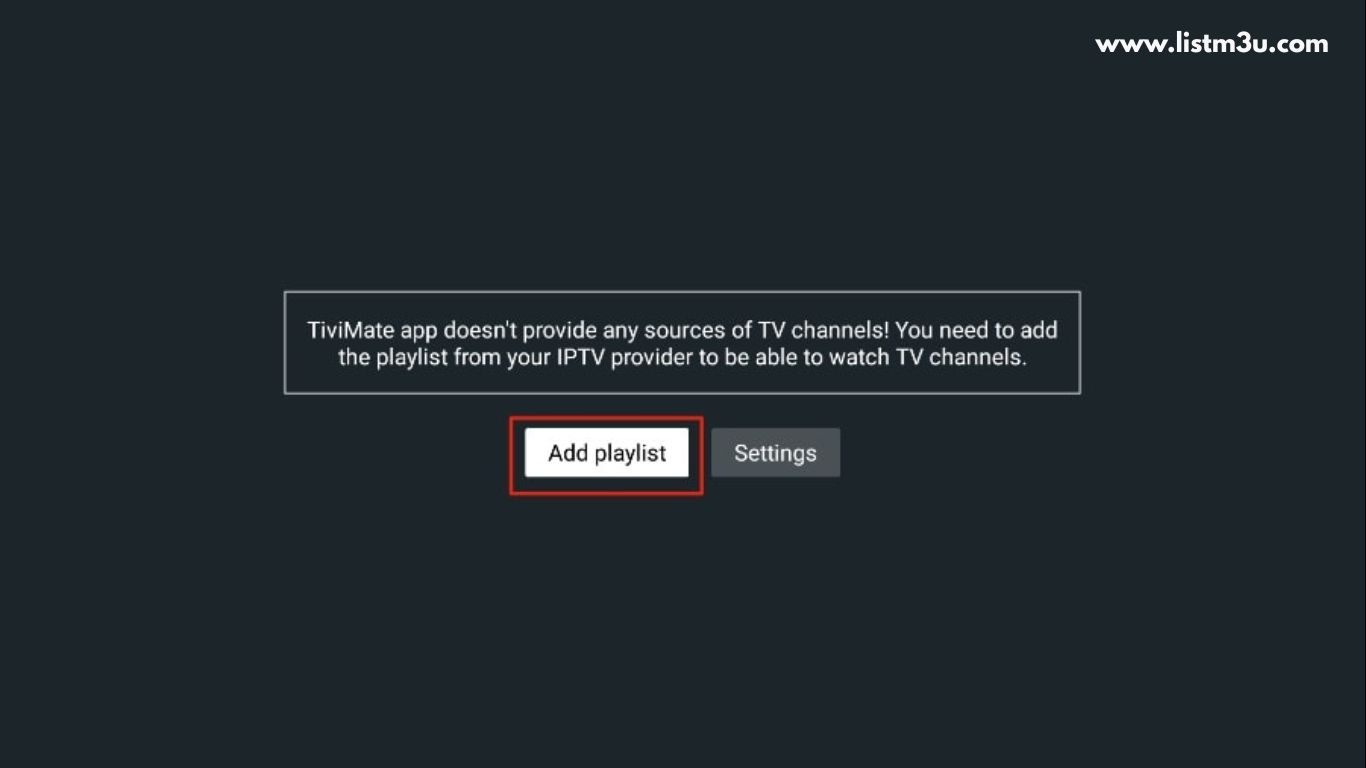
Step 1: Launch TiviMate Application
Navigate to your device’s app menu and launch TiviMate. On the welcome screen, locate and select the “Add playlist” button to begin the configuration process.
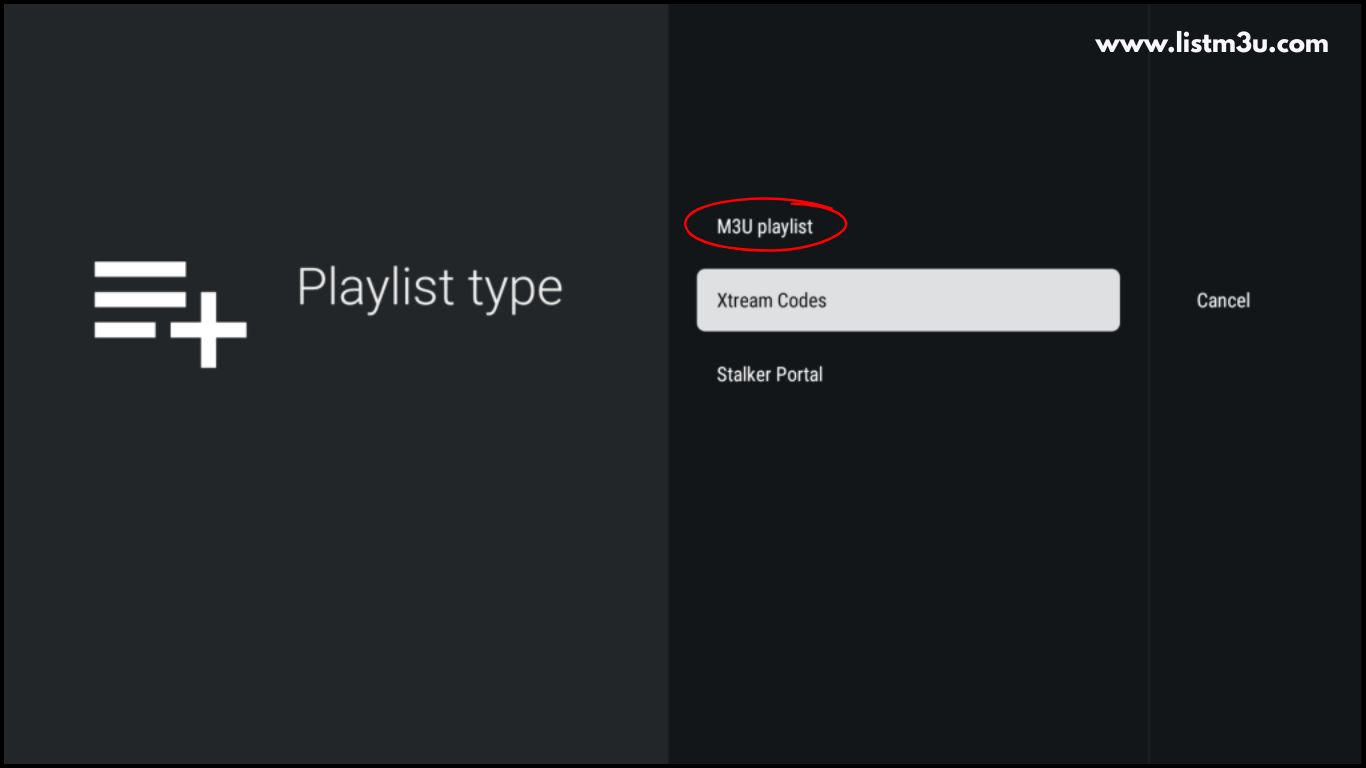
Step 2: Select Playlist Type
From the playlist type options presented, choose “M3U playlist” to proceed with URL-based playlist configuration rather than Xtream Codes login.
Step 3: Access URL Input Field
Tap the “Enter URL” option to open the text input field where you’ll paste your M3U playlist address.
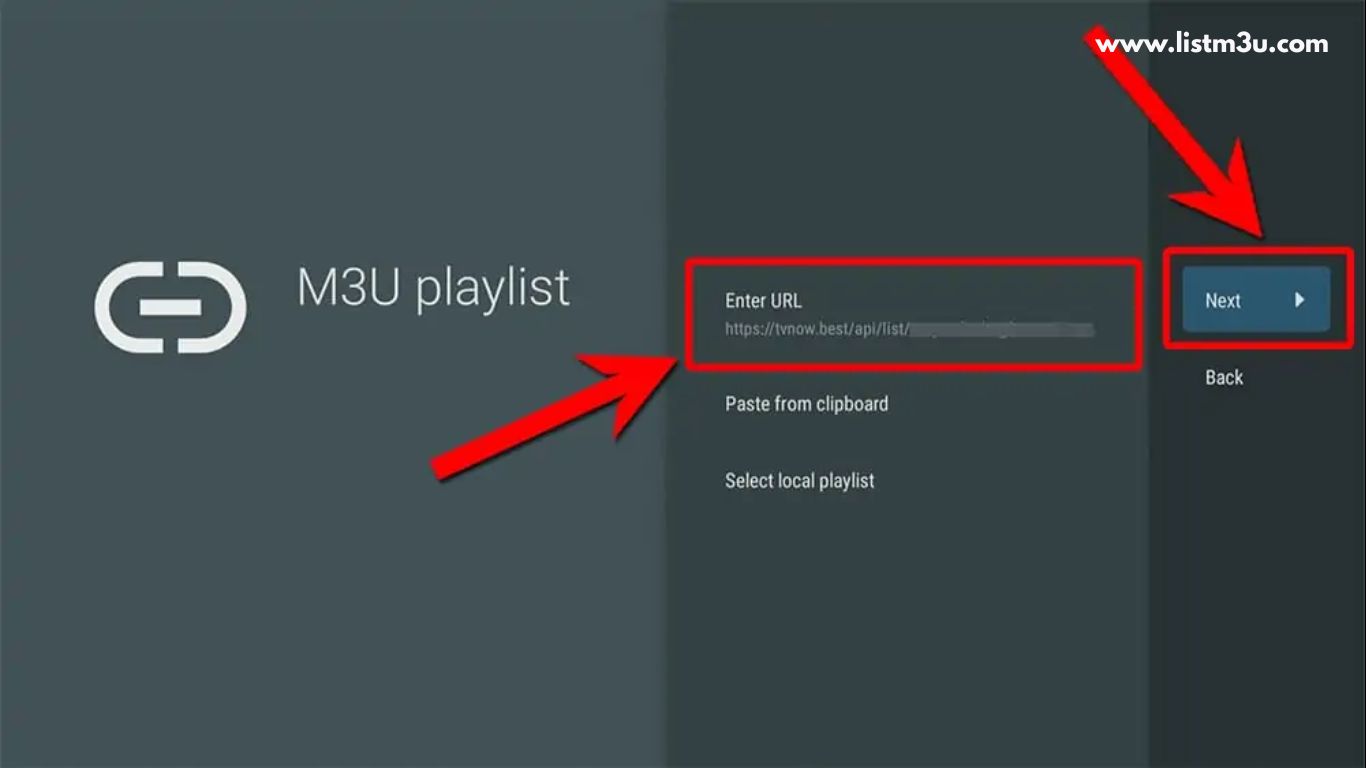
Step 4: Input Playlist URL
Carefully paste your complete M3U playlist URL into the designated field. Ensure there are no extra spaces or characters before or after the URL.
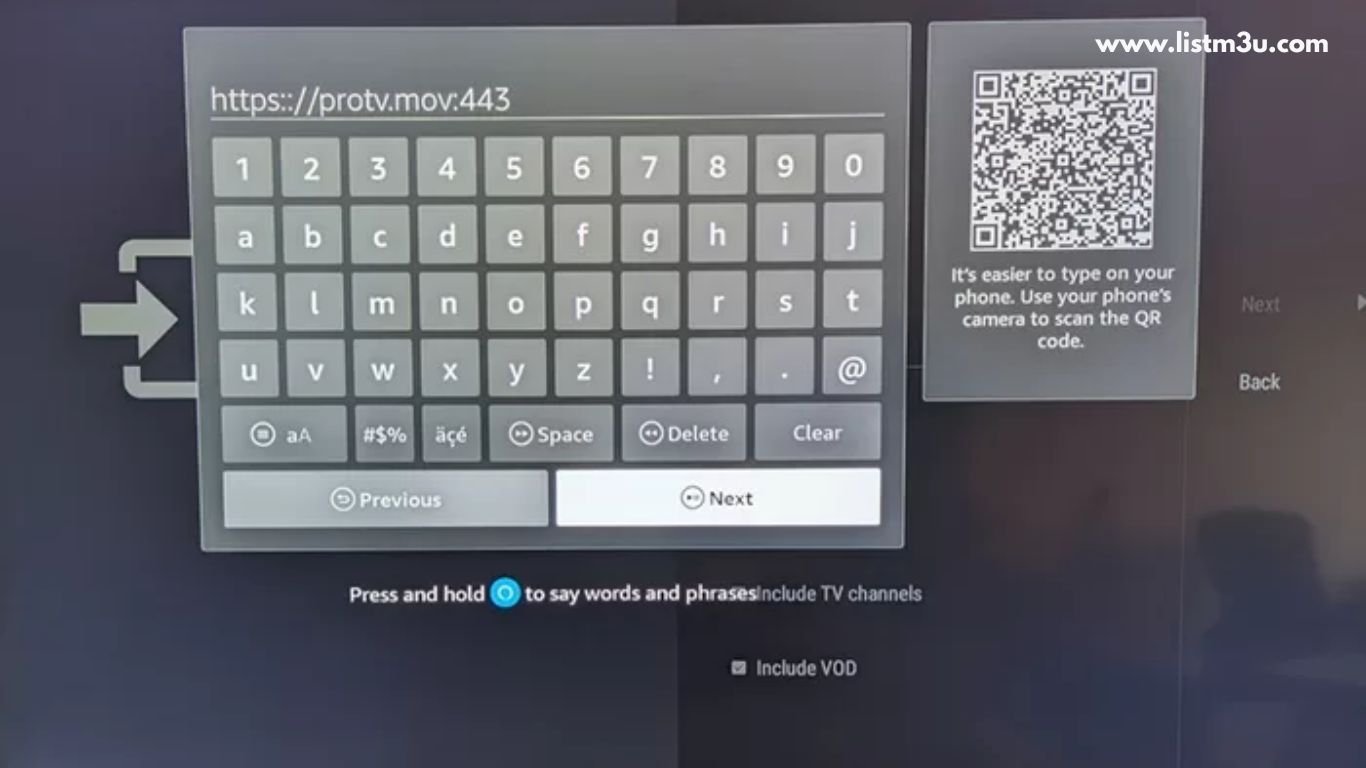
Step 5: Playlist Processing
TiviMate will automatically begin parsing your playlist data. Processing time varies based on playlist size, typically ranging from 10 to 60 seconds for standard channel lineups.
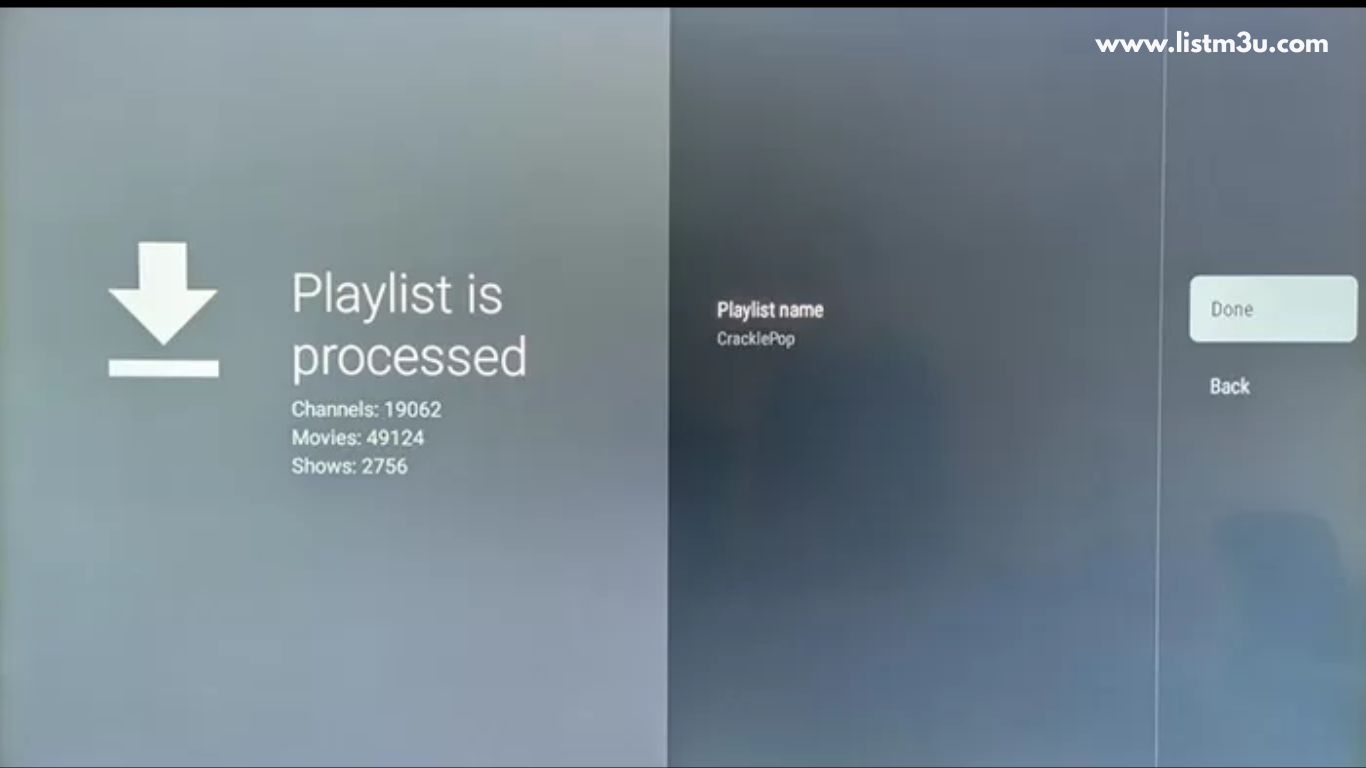
Step 6: Begin Streaming
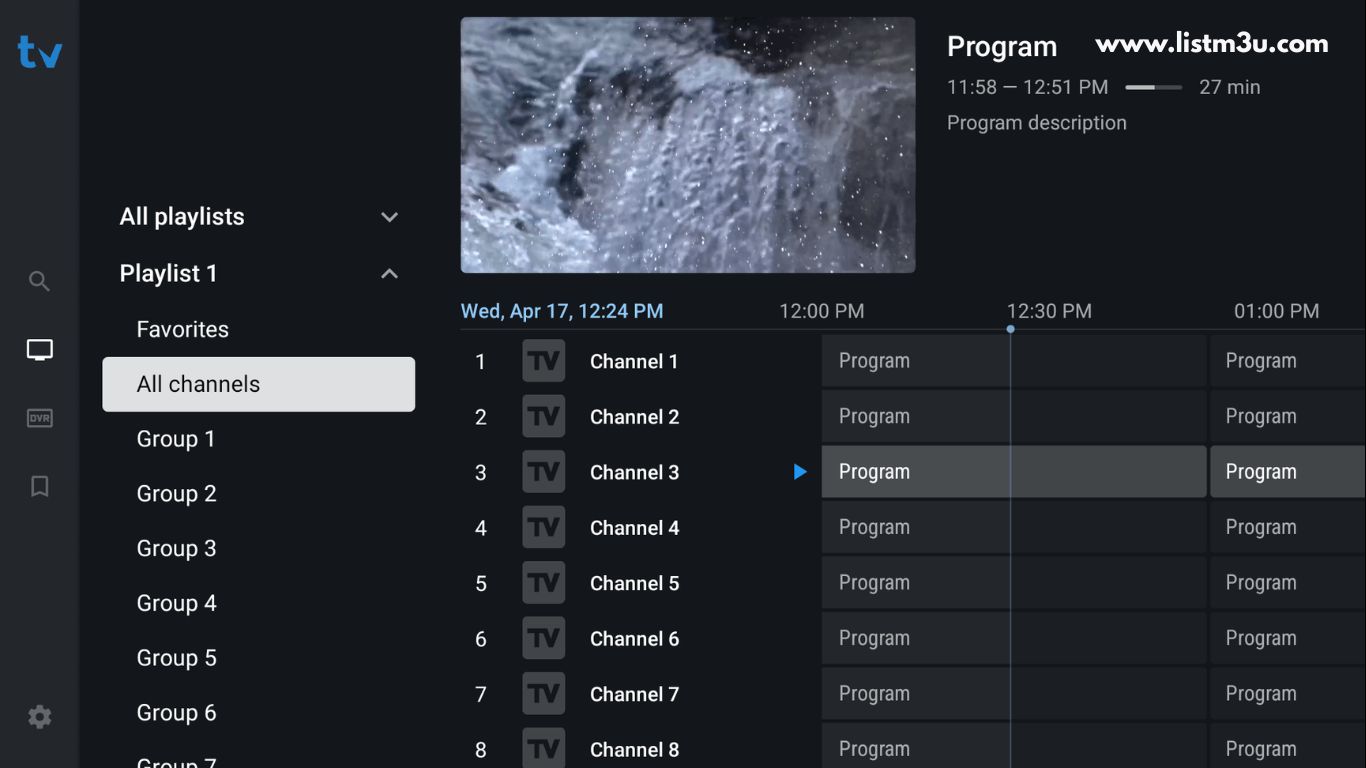
After successful processing, tap “Done” to access your complete channel library, VOD content, and series collections ready for immediate streaming.
Comparing M3U and Xtream Codes for TiviMate
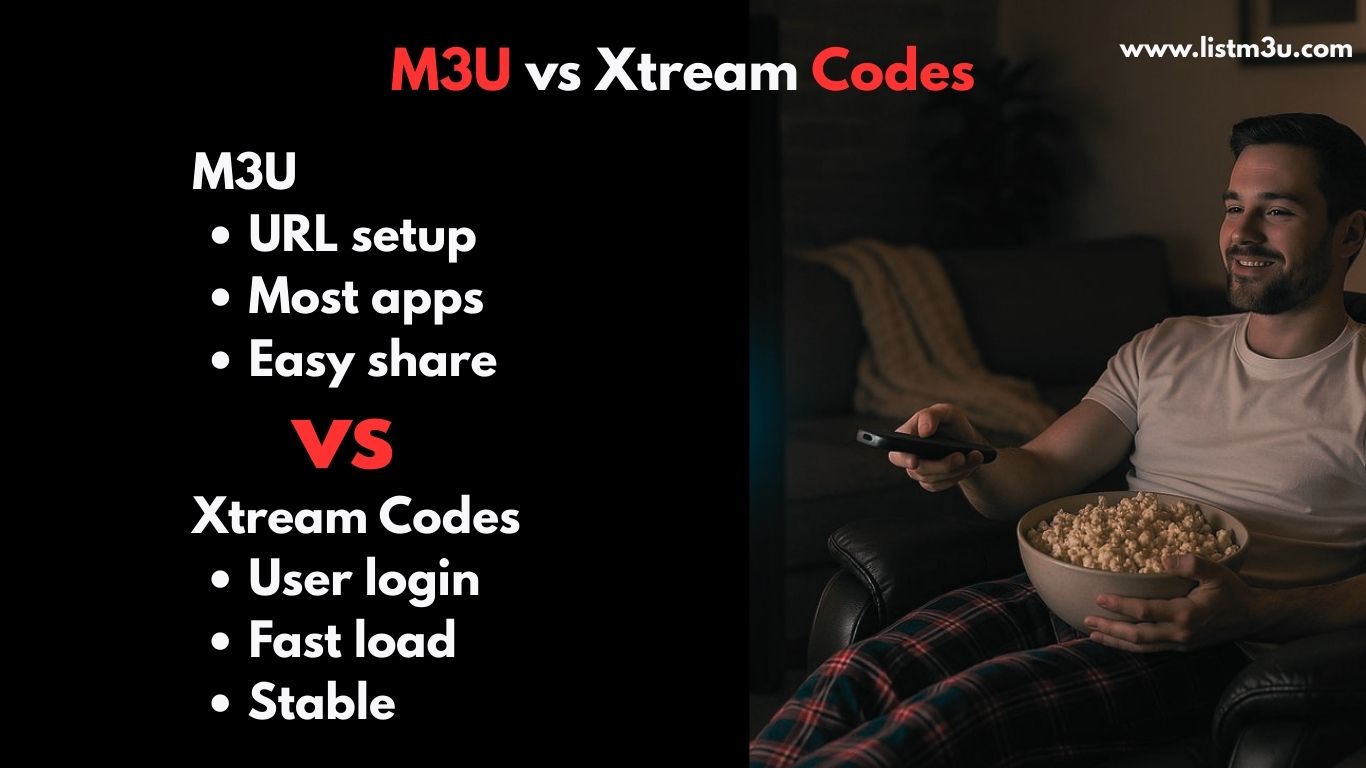
TiviMate supports two primary authentication methods for IPTV content access: M3U playlist URLs and Xtream Codes API. While both methods deliver full functionality, they differ significantly in performance characteristics, ease of use, and feature availability. Understanding these differences helps you select the optimal configuration method for your streaming needs.
M3U Playlist Method
The M3U approach utilizes a single URL containing all channel information, VOD libraries, and series data. This straightforward method requires only copying and pasting one link, making it accessible for users of all technical skill levels.
Advantages:
- Universal compatibility across all IPTV applications
- Simplified setup requiring only one URL
- No additional authentication steps needed
- Works with any IPTV service offering M3U format
Limitations:
- Limited advanced configuration options
- Less efficient data structure compared to API-based methods
- Manual playlist refresh required for updates
Xtream Codes API Method
Xtream Codes establishes a direct API connection to your IPTV provider’s server using three credentials: server URL, username, and password. This method provides superior performance and enhanced features within TiviMate’s interface.
Advantages:
- Significantly faster channel loading and switching
- Superior EPG integration with accurate program data
- Organized content categories and improved navigation
- Enhanced security through encrypted authentication
- Automatic playlist updates without manual intervention
Best For: Users who prioritize performance and security
Limitations:
- Requires IPTV provider to support Xtream Codes API
- Slightly more complex initial setup process
Top IPTV Players Supporting M3U Playlists in 2025
Selecting the appropriate IPTV player significantly impacts your streaming experience, affecting everything from channel loading speed to interface usability. These highly-rated applications offer robust M3U playlist support alongside Xtream Codes compatibility across various platforms and devices.

1. IPTV Smarters Pro
IPTV Smarters Pro ranks among the most widely adopted IPTV applications, delivering comprehensive M3U and Xtream Codes support with cross-platform availability and straightforward configuration.
Notable Features:
- Simultaneous multi-screen viewing capability
- Built-in parental control system
- Integrated electronic program guide
- Compatible with Android, iOS, Smart TVs, and Firestick devices
2. IBO Player
IBO Player specializes in Smart TV optimization, providing seamless M3U playlist integration with an elegant interface designed specifically for large-screen viewing experiences.
Notable Features:
- Interface optimized for Smart TV navigation
- Rapid channel switching with minimal delay
- Intuitive menu system for easy content discovery
- Consistent streaming stability
3. XCIPTV Player
XCIPTV Player combines modern design aesthetics with powerful functionality, supporting both M3U URLs and Xtream Codes authentication on Android and Firestick platforms.
Notable Features:
- Contemporary user interface design
- Streamlined setup process
- Comprehensive multi-device compatibility
- Customizable parental restriction settings
4. Xtream Player
Xtream Player focuses on simplicity and efficiency, offering lightweight performance with fast M3U playlist loading across multiple operating systems.
Notable Features:
- Minimal resource consumption
- Accelerated content loading
- Broad platform compatibility
- Straightforward user experience
5. SmartOne IPTV
SmartOne IPTV targets Samsung and LG Smart TV users specifically, delivering optimized M3U playlist functionality with simplified activation procedures.
Notable Features:
- Purpose-built for Smart TV platforms
- Hassle-free activation process
- Reliable EPG data integration
- Dependable streaming performance
6. VLC Media Player
VLC Media Player serves as a versatile, open-source solution supporting M3U playlist playback across virtually every major operating system and device type.
Notable Features:
- Completely free with no subscription fees
- Universal cross-platform compatibility
- Ad-free viewing experience
- Support for all major media formats
Troubleshooting M3U Playlist Issues in TiviMate
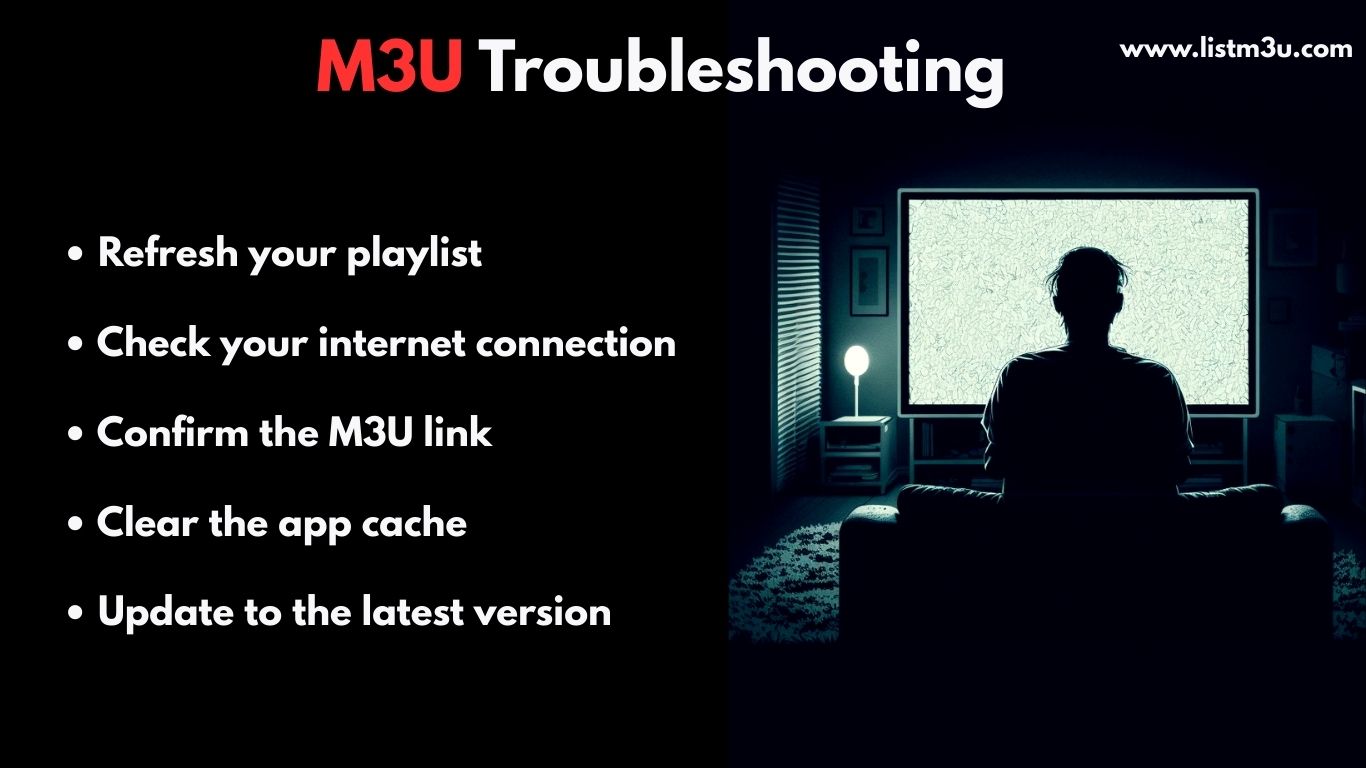
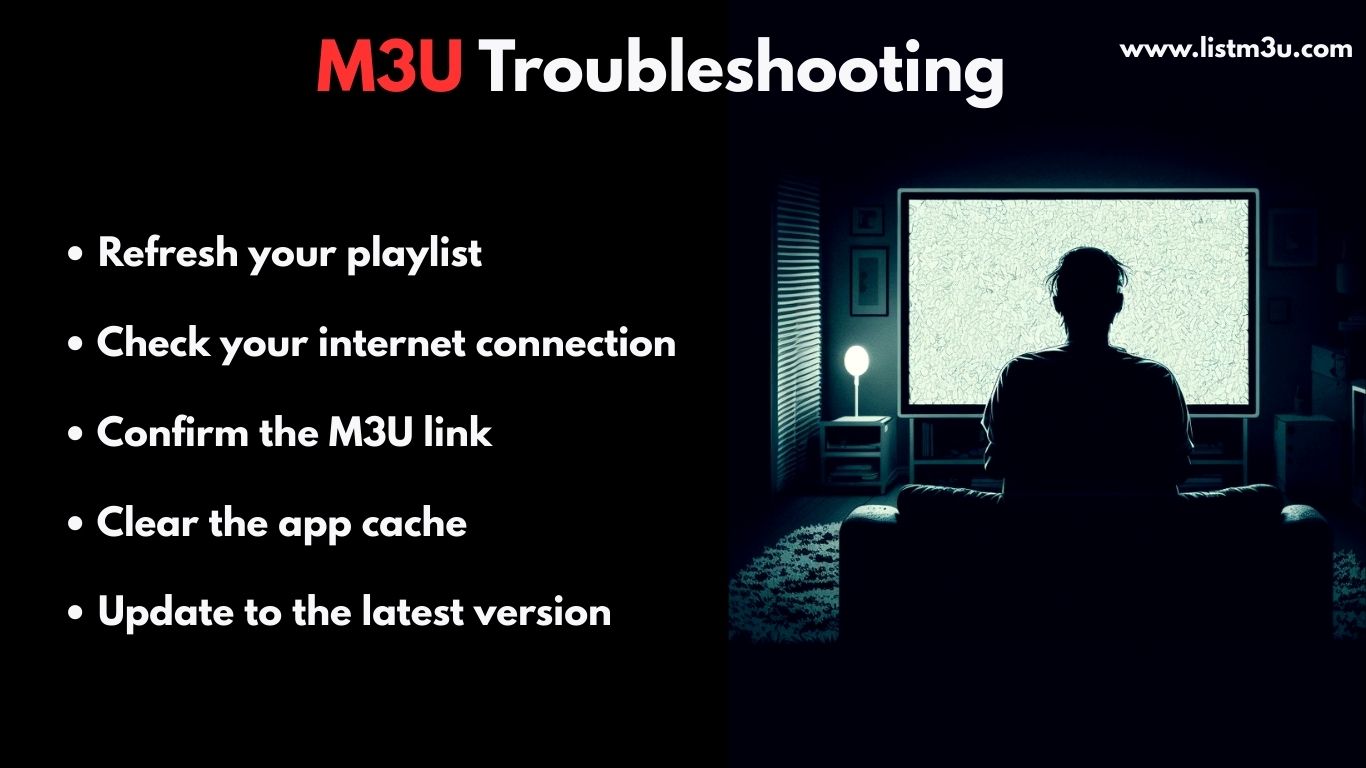
When M3U playlists fail to function properly in TiviMate, several common factors may be responsible. This troubleshooting section addresses frequent problems related to URL formatting, subscription validity, EPG configuration, and network connectivity, providing actionable solutions to restore normal streaming functionality.
Resolving Invalid URL Errors
Issue Identification: URL formatting errors, including extraneous whitespace characters or incorrect credential information, prevent successful playlist loading.
Resolution Steps: Carefully verify your M3U URL for accuracy, ensuring no spaces exist before or after the link. Confirm that any embedded username and password credentials match those provided by your IPTV service. Copy the URL directly from your provider’s email or dashboard to avoid transcription errors.
Fixing Empty Channel Lists
Issue Identification: TiviMate successfully adds the playlist but displays no channels or content categories.
Resolution Steps:
- Force close and restart the TiviMate application
- Navigate to playlist settings and select the refresh option
- Confirm your IPTV subscription remains active and hasn’t expired
- Request an updated M3U URL from your service provider
- Clear TiviMate’s cache data through your device settings
Restoring Missing EPG Data
Issue Identification: Channels load successfully but lack program guide information, showing blank or generic titles.
Resolution Steps:
- Verify the EPG URL provided by your IPTV service is correctly entered
- Manually trigger EPG updates through TiviMate’s settings menu
- Allow 24-48 hours for complete EPG data population
- Confirm your IPTV provider includes EPG services in your subscription tier
- Check EPG update frequency settings within TiviMate
Eliminating Buffering and Freezing
Issue Identification: Persistent buffering interruptions, video freezing, or playback stuttering during content streaming.
Resolution Steps:
- Switch from wireless WiFi to wired Ethernet connection for improved stability
- Power cycle your network router and modem
- Terminate bandwidth-intensive applications running in the background
- Request alternative server options from your IPTV provider
- Verify your internet connection delivers minimum 15-25 Mbps for HD streaming
- Test connection speed using online speed test tools
Optimizing TiviMate Performance for Superior Streaming
Implementing these optimization strategies ensures TiviMate operates at peak efficiency, delivering smooth playback, rapid channel switching, and minimal buffering interruptions.
Network Connection Optimization
- Prioritize wired Ethernet connections over wireless networks for maximum stability
- Maintain minimum 15 Mbps download speeds for standard HD content
- Ensure 25+ Mbps bandwidth availability for 4K streaming
- Eliminate bandwidth competition by closing unnecessary applications
Application Configuration
- Activate hardware acceleration within TiviMate settings for improved video processing
- Fine-tune buffer size parameters to match your network conditions
- Configure external video players (VLC or MX Player) for enhanced codec compatibility
- Adjust video quality settings based on available bandwidth
Regular Maintenance Procedures
- Install TiviMate updates promptly when released
- Clear application cache data weekly to prevent performance degradation
- Refresh M3U playlists monthly to ensure current channel availability
- Update EPG data regularly for accurate program information
Final Thoughts on TiviMate M3U Configuration
Configuring M3U playlists in TiviMate proves straightforward when you have accurate IPTV credentials and follow proper setup procedures. Once successfully configured, TiviMate delivers an exceptional streaming experience characterized by smooth playback, organized content libraries, and reliable performance. The application’s sophisticated interface combined with advanced features positions it as a premier choice among IPTV players for Android TV and Amazon Firestick platforms.
Frequently Asked Questions About TiviMate M3U Setup
Is using TiviMate legal for IPTV streaming?
TiviMate itself is completely legal software—it functions solely as a media player application without hosting, distributing, or providing any television channels or copyrighted content. Legality concerns depend entirely on the IPTV service you choose to use with TiviMate. Always ensure your IPTV provider operates legally and you have proper authorization to access their content.
Does TiviMate offer free M3U playlist support?
TiviMate provides a free version with full M3U playlist functionality, allowing you to add and stream content without payment. However, upgrading to TiviMate Premium unlocks advanced capabilities including multiple playlist management, built-in recording features, picture-in-picture viewing mode, and unlimited EPG timeline access.
Can I use my M3U playlist across multiple devices simultaneously?
Multi-device usage depends on your IPTV provider's connection policy and subscription tier. Most IPTV services permit between 1 and 5 concurrent connections per account. Contact your provider directly to confirm specific device limitations and explore multi-connection subscription options if needed.
Which is superior for TiviMate: M3U playlists or Xtream Codes?
Xtream Codes typically delivers superior performance in TiviMate, offering accelerated channel loading, enhanced EPG synchronization, and more organized content categorization. That said, M3U playlists provide simpler setup procedures and remain the only option when your IPTV provider doesn't support Xtream Codes API access.
Does TiviMate allow multiple M3U playlist configurations?
TiviMate supports unlimited M3U playlist additions, enabling you to manage multiple IPTV services within a single application. However, this multi-playlist functionality requires TiviMate Premium subscription. Once activated, you can seamlessly switch between different playlists and organize content from various providers.
What causes M3U playlists to fail in TiviMate?
M3U playlist failures typically stem from several common issues: expired IPTV subscriptions, improperly formatted URLs containing extra characters or spaces, server-side problems from your provider, insufficient internet bandwidth, or outdated TiviMate versions. Systematically verify your URL accuracy, confirm active subscription status, test network connectivity, and contact your IPTV provider's support team if problems persist.