What Is Xtream Player?
Xtream Player functions as an IPTV application that allows users to stream IPTV content using M3U URLs or Xtream Codes API authentication. The application itself does not provide any channels or content—you must add your own IPTV playlist from a service provider to access streaming content.
Supported Device Platforms
- Amazon Firestick and Fire TV devices
- Android TV and Android TV boxes
- Android smartphones and tablets
- Smart TVs with Android operating system
What Is an M3U Playlist?
An M3U playlist serves as a structured file or web link containing IPTV channels, movie libraries, and television series, enabling your IPTV player to instantly load and stream content. This universally compatible format maintains support across virtually all IPTV applications and streaming devices, establishing it as the industry standard for content delivery.
How to Obtain Free M3U for Xtream Player
Securing a legitimate M3U playlist requires partnering with reputable IPTV service providers who maintain reliable server infrastructure and deliver comprehensive access credentials. The most effective approach involves selecting established services that provide instant credential delivery and ongoing technical support.
Instant M3U Playlist Delivery
Modern IPTV providers have streamlined their signup processes, delivering M3U playlist credentials within seconds of registration. Many services offer complimentary trial periods, allowing you to evaluate channel quality and streaming stability before committing to a paid subscription.
Get Free M3U
Essential Credentials from IPTV Providers
Professional IPTV providers deliver a complete package of credentials and resources:
- Xtream Codes authentication - Server address, username, and password credentials
- M3U playlist URL - Direct link to your complete channel lineup
- EPG (TV Guide) URL - Program scheduling and show information
M3U Playlist Configuration in Xtream Player
This comprehensive walkthrough demonstrates the complete process of integrating your M3U playlist into Xtream Player, from initial configuration through channel loading and content access. Follow these instructions carefully to ensure proper setup and optimal streaming performance.
Prerequisites for Activation
- Xtream Player installed on your compatible device
- Valid M3U playlist URL from your IPTV provider
- Stable internet connection with minimum 15 Mbps bandwidth
Step-by-Step M3U Setup Instructions
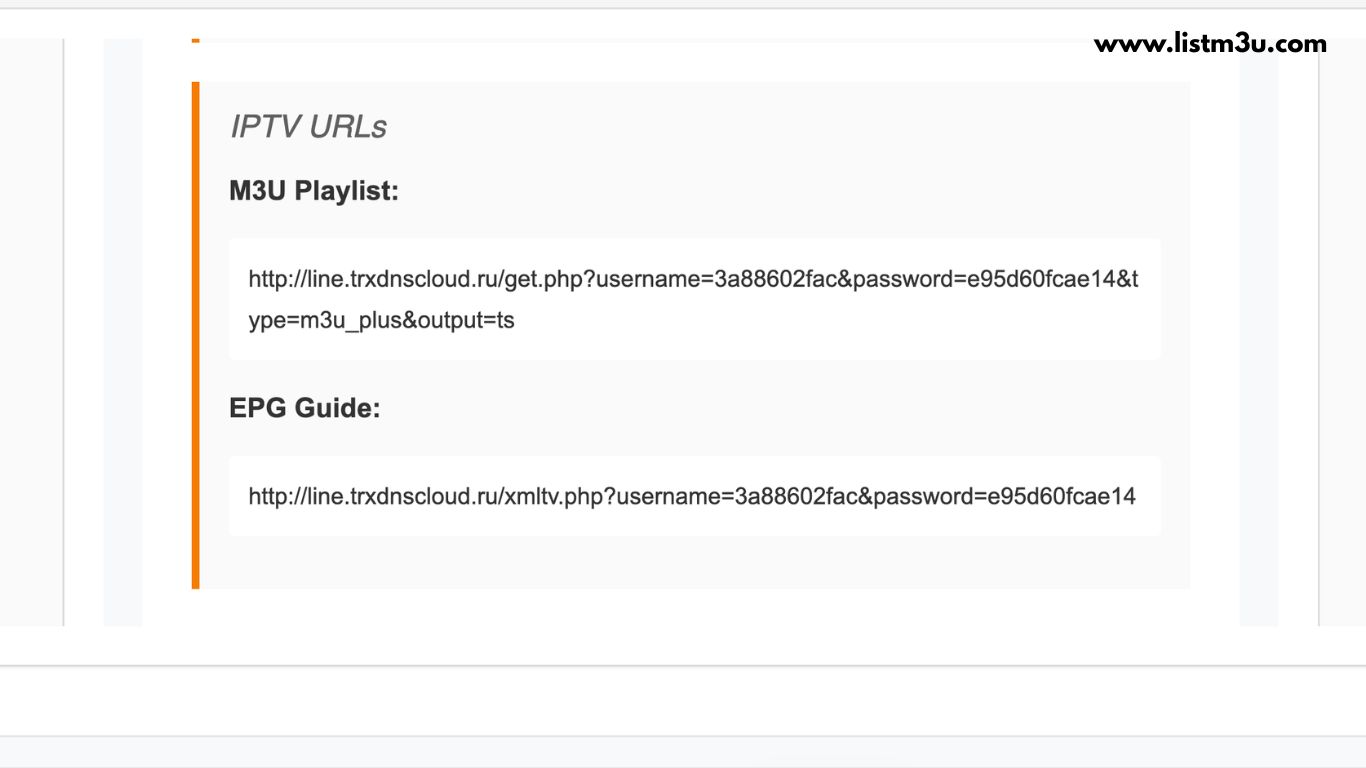
Step 1: Obtain Your M3U Playlist
Before configuring Xtream Player, ensure you have received your M3U playlist URL from your IPTV service provider. This URL contains all necessary information to load your channel lineup, VOD library, and series collections.
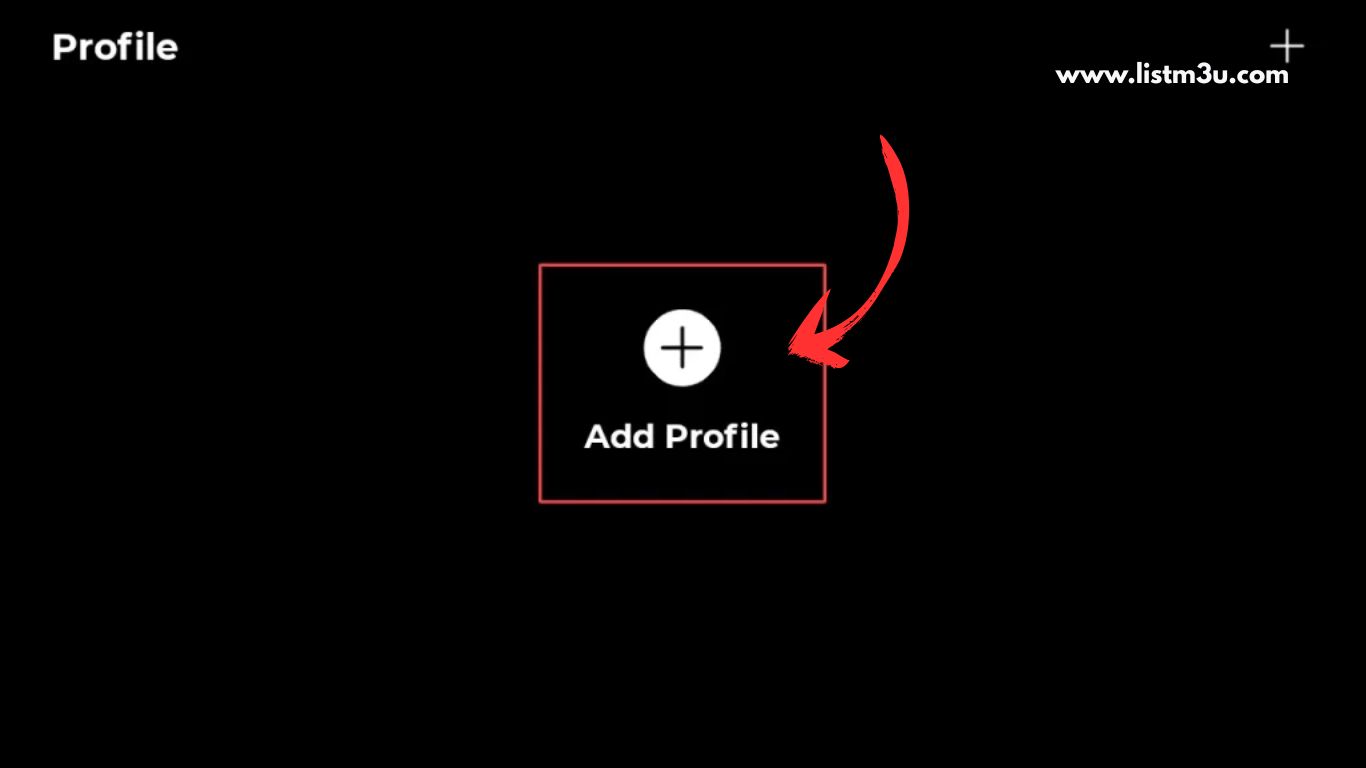
Step 2: Launch Xtream Player and Add Profile
Open the Xtream Player application on your device and navigate to the main screen. Locate and tap the "Add Profile" button to begin the playlist configuration process.
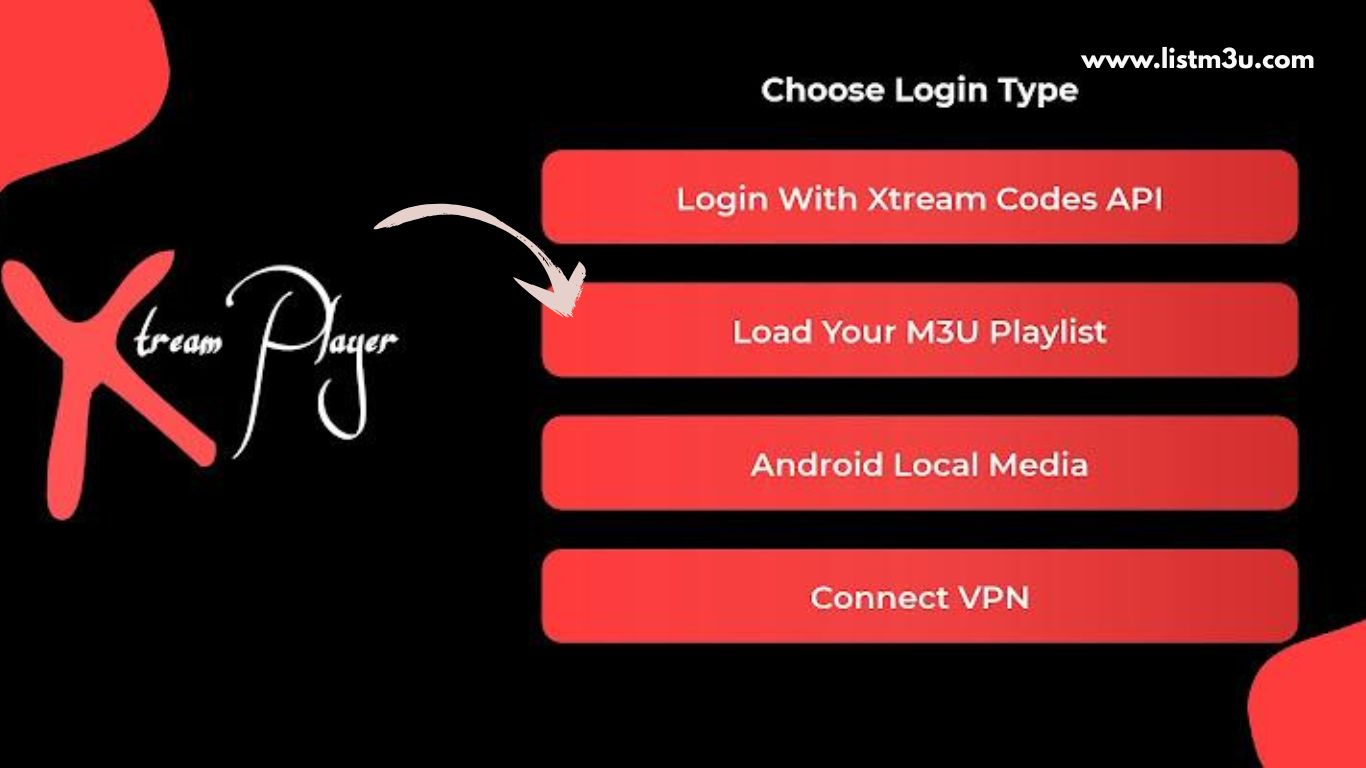
Step 3: Select M3U Playlist Option
On the "Choose Login Type" screen, select "Load Your M3U Playlist" to proceed with URL-based playlist configuration rather than Xtream Codes authentication.
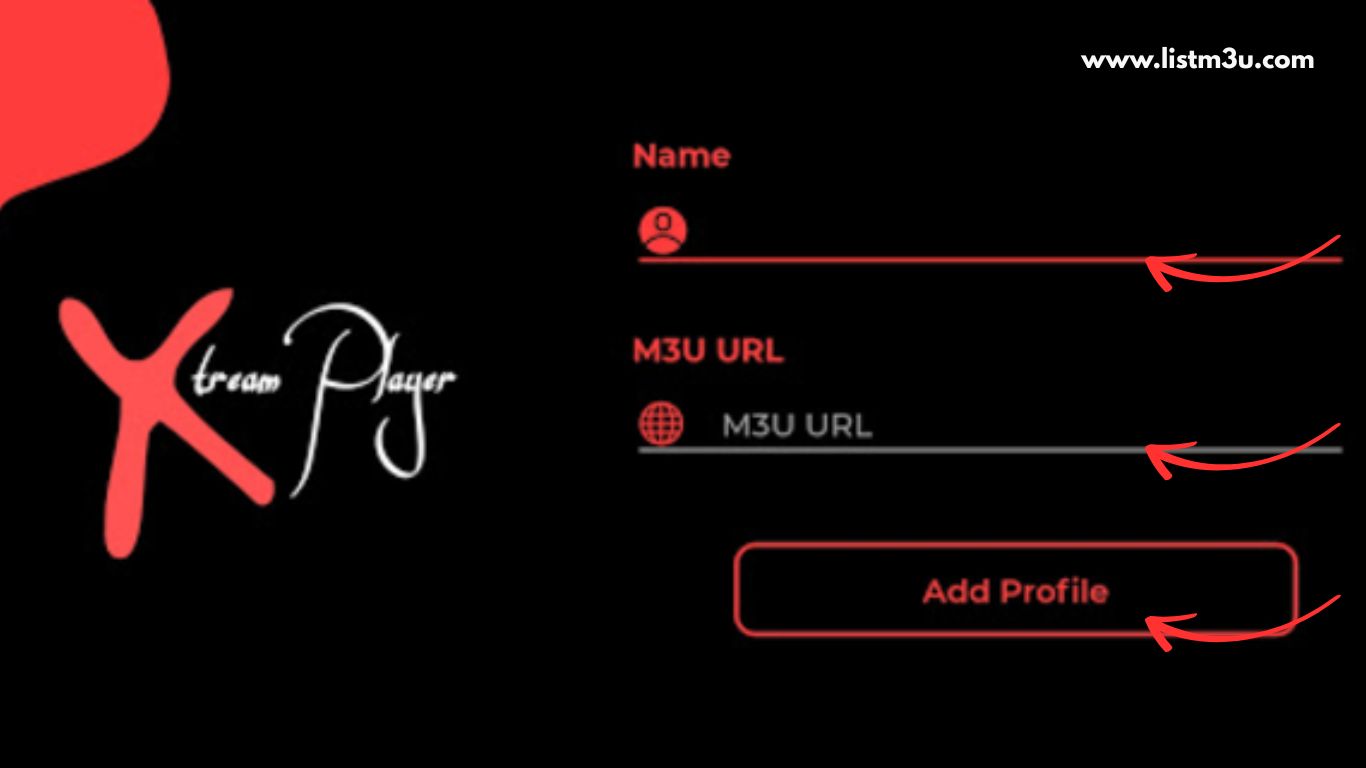
Step 4: Enter Playlist Details and Save
Enter a descriptive name for your playlist, carefully paste your complete M3U URL into the designated field, then tap "Add Profile" to save the configuration and initiate the playlist loading process.
Step 5: Complete Setup and Start Streaming
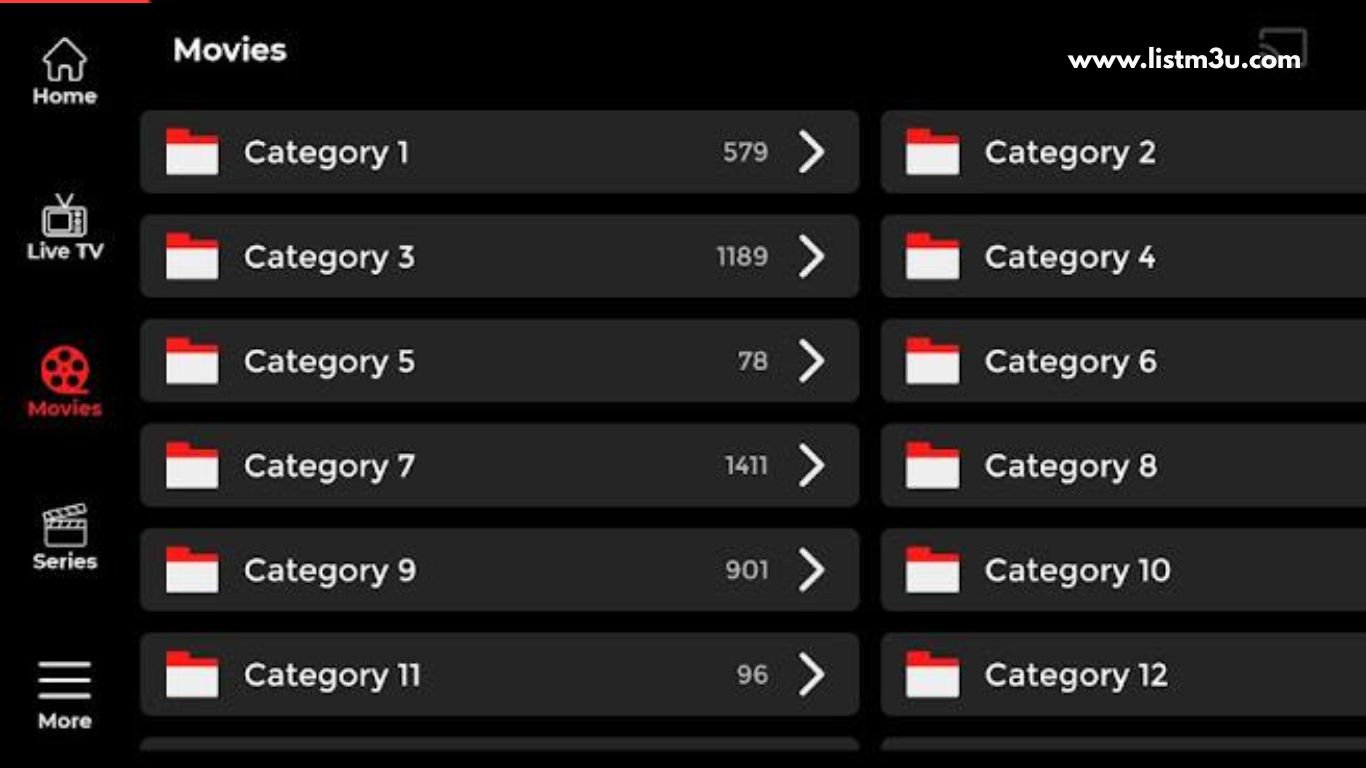
After successfully adding your playlist, Xtream Player will process the channel data and display your content categories. Navigate through the organized channel list and begin streaming your favorite live TV, movies, and series immediately.
M3U vs Xtream Codes in Xtream Player
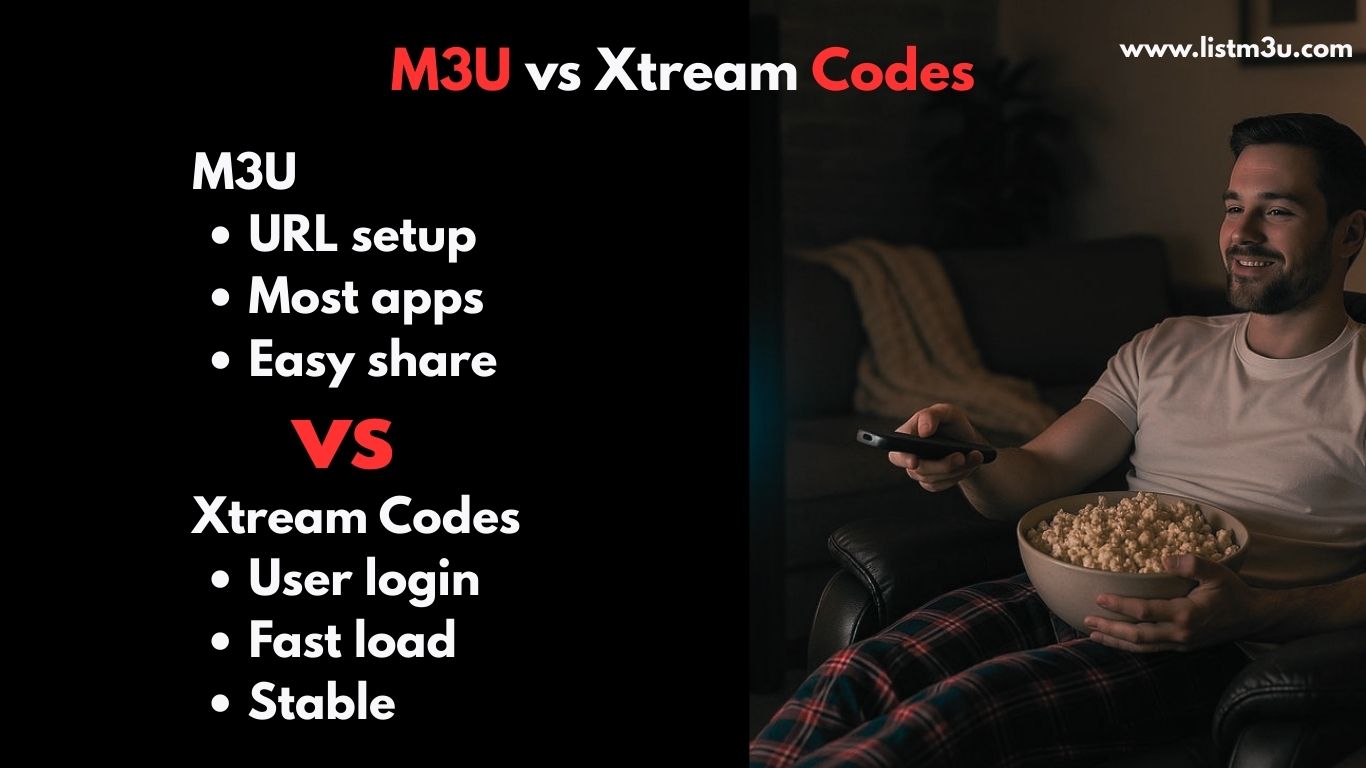
Xtream Player supports two primary authentication methods for IPTV content access: M3U playlist URLs and Xtream Codes API. While both methods deliver full functionality, they differ significantly in performance characteristics, ease of use, and feature availability. Understanding these differences helps you select the optimal configuration method for your streaming needs.
M3U Playlist Method
The M3U approach utilizes a single URL containing all channel information, VOD libraries, and series data. This straightforward method requires only copying and pasting one link, making it accessible for users of all technical skill levels.
- Universal compatibility across all IPTV applications
- Simplified setup requiring only one URL
- No additional authentication steps needed
Xtream Codes API Method
Xtream Codes establishes a direct API connection to your IPTV provider's server using three credentials: server URL, username, and password. This method provides superior performance and enhanced features within Xtream Player's interface.
- Significantly faster channel loading and switching
- Superior EPG integration with accurate program data
- Enhanced security through encrypted authentication
Get Free Xtream Code
Which Authentication Method to Choose
Both M3U and Xtream Codes deliver reliable performance in Xtream Player, allowing you to select the option that best aligns with your IPTV provider's offerings and your technical comfort level. Many premium providers support both formats, providing flexibility to switch if your needs evolve.
Alternative IPTV Players to Xtream Player
Selecting the appropriate IPTV player significantly impacts your M3U playlist's performance, streaming smoothness, and overall user experience. Below are the industry-leading IPTV players that support both M3U and Xtream Codes authentication across multiple device platforms.
1. TiviMate
One of the premier IPTV players designed specifically for Android TV and Amazon Firestick devices, delivering a premium interface layout and exceptional streaming performance with advanced features including DVR recording capabilities and multiple playlist management.
2. IPTV Smarters Pro
A widely adopted multi-platform IPTV application supporting both M3U and Xtream Codes with an intuitive setup process, cross-device compatibility, parental control features, and multi-screen viewing options.
3. XCIPTV Player
A modern, performance-optimized IPTV player compatible with both M3U and Xtream Codes on Android and Firestick platforms, recognized for its clean interface design and efficient resource utilization.
4. IBO Player
A feature-rich Smart TV IPTV player offering a polished interface and dependable M3U playlist support, specifically optimized for Smart TV platforms with smooth performance and reliable streaming.
5. SmartOne IPTV
An excellent IPTV application specifically optimized for Samsung and LG Smart TV platforms, offering streamlined activation and comprehensive M3U compatibility with remote-friendly navigation designed for television interfaces.
6. VLC Media Player
A universal, open-source media player supporting M3U playback across Windows, Mac, Linux, Android, iOS, and numerous other platforms, completely free with no registration required.
Common M3U Issues in Xtream Player
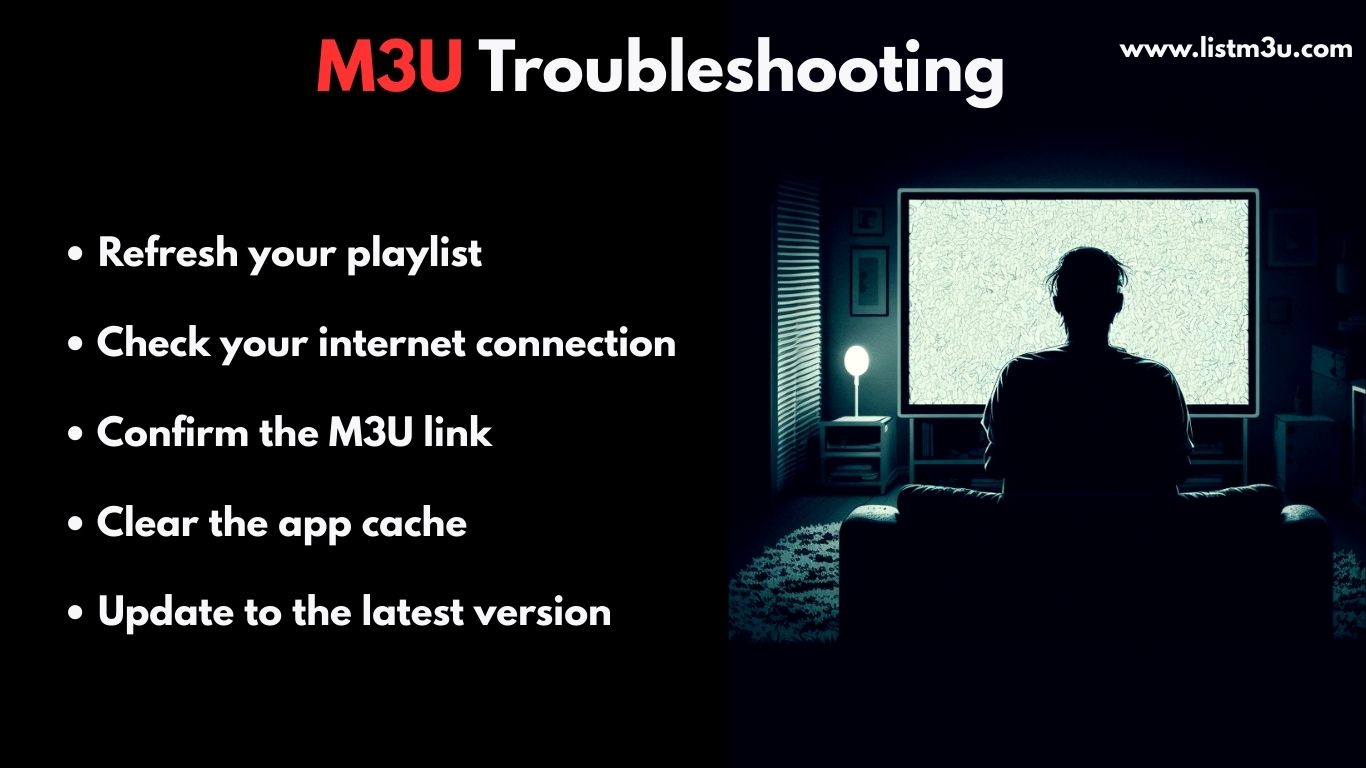
When adding an M3U playlist to Xtream Player, you may occasionally encounter loading or display issues. Most of these problems can be resolved by verifying your playlist details, refreshing the application, or adjusting basic configuration settings.
M3U Playlist Not Loading
This issue typically occurs due to an incorrect or expired M3U link. Always verify that the URL is copied correctly without extra spaces, confirm your IPTV subscription remains active, and restart both the application and your device to refresh the connection.
Channels Not Displaying
If channels do not appear after adding the playlist, the content may not have fully synchronized. Reload the playlist from settings, clear the app cache through your device settings, and ensure your internet connection is stable and fast enough for IPTV streaming.
EPG Data Not Loading
When the TV guide does not display program information, it is often because EPG data needs time to synchronize. Enable EPG in the app settings, wait several minutes for the data to load, and confirm that your IPTV provider includes EPG support in your subscription tier.
Conclusion
Configuring an M3U playlist in Xtream Player proves straightforward when you follow the correct setup procedures. With a reliable IPTV service provider, Xtream Player delivers a smooth, organized, and high-quality viewing experience across all your compatible devices.
Frequently Asked Questions
Is Xtream Player legal to use?
Yes, Xtream Player itself is completely legal as it functions solely as an IPTV media player and does not provide any channels. The legality depends on the IPTV content source you add, so always use playlists from legal and authorized providers.
Can I use a free M3U on Xtream Player?
Yes, you can use free M3U playlists, but they often have limitations including fewer channels, frequent buffering, broken links, and no customer support. For a reliable experience, consider a paid IPTV service with quality M3U playlists.
How many devices can use the same M3U playlist?
This depends on your IPTV provider's policy. Most providers allow 1-5 simultaneous connections per subscription. Check with your provider for specific device limits and multi-device options.
Can I change or replace my M3U playlist later?
Yes, you can easily update or replace your M3U playlist in Xtream Player at any time. Simply go to settings, remove the old playlist, and add a new one following the same setup steps.
Does Xtream Player support VOD and TV series?
Yes, Xtream Player fully supports Video on Demand (VOD) and TV series content when your M3U playlist includes these features. The availability depends on what your IPTV provider offers in their service.
Why is my M3U playlist buffering or loading slowly?
Buffering typically results from insufficient internet bandwidth or network instability. Ensure you have at least 15-20 Mbps for HD streaming, use a wired Ethernet connection when possible, close bandwidth-intensive applications, and restart your router to optimize performance.